Signing in & roles
Sign in with your email and password at https://arcus.moplatform.cc. Your role decides what you see and where you land:
| Role | Lands on | Can do |
|---|---|---|
| admin (CEO/owner) | Executive dashboard | Everything |
| accountant | Finance dashboard | All finance & reports (read-only on master data edits) |
| senior_sales | Marketing dashboard | Sales, purchasing, imports, products, loans |
| sales | Marketing dashboard | Sales documents |
| user | Dashboard | Viewing |
Dashboards
Executive (CEO)
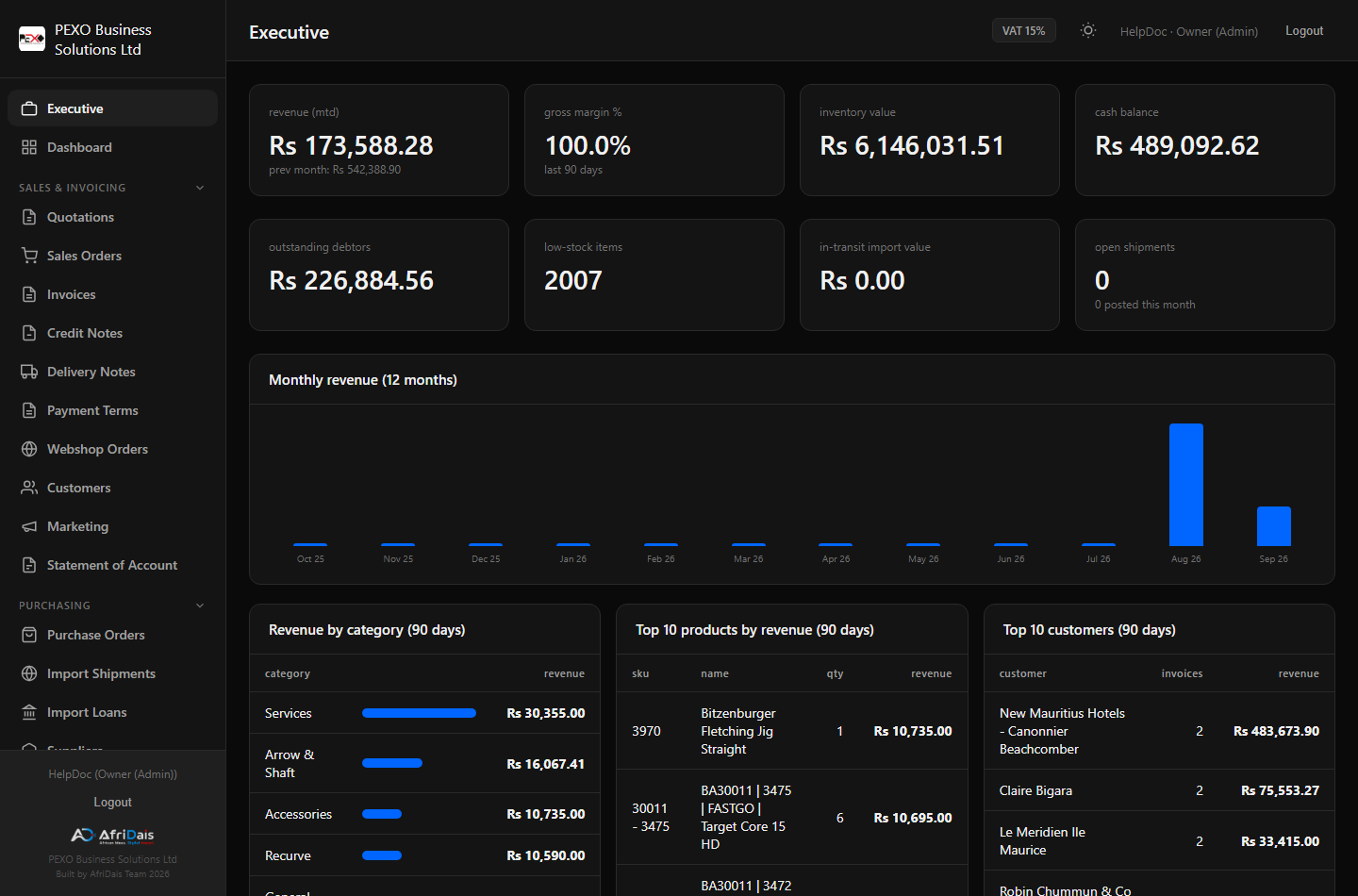
- Revenue MTD — invoiced sales this month vs last month.
- Gross margin % — (revenue − cost of goods) ÷ revenue, last 90 days. Cost comes from the product's
buying_price/landed cost, so keep buying prices current or this reads high. - Inventory value — stock × landed/buying cost (active products only).
- Cash balance — bank & cash accounts from the general ledger.
- In-transit import value — goods received into transit not yet costed by a shipment.
- Import loan facility — credit limit, drawn, available, next maturity.
Marketing
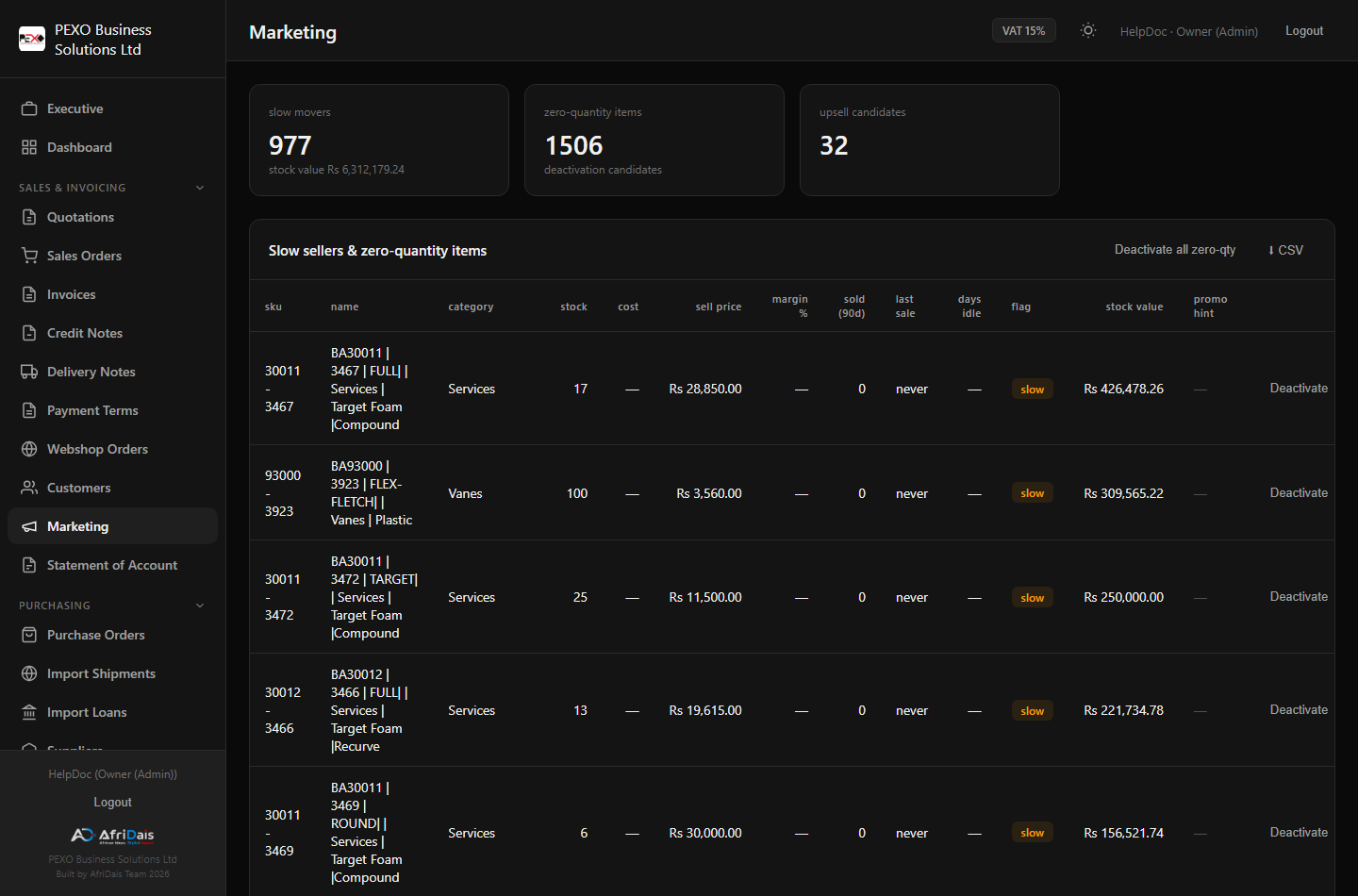
- Zero-quantity items — out-of-stock products (deactivation candidates; they auto-reactivate on restock).
- Slow sellers — no sale in 90+ days, with promo price hints and CSV export for campaigns.
- Upsell opportunities — customers who bought one half of a frequently-bought-together pair but never the other.
Products, SKUs & categories
Add or edit a product
- Products → + Add product (or Edit on a row).
- SKU is required and must be unique (case-insensitive). Keep it as text — leading zeros and punctuation are preserved.
- Classification: pick the Item Group, then the Reference (e.g.
50007 — Quivers). Group/Type/Categories fill automatically and cannot be typed over. Records held for review cannot be assigned until approved. - Import & landed cost: HS code, duty rate, origin, weights/volume (used by shipment allocation), margin target (drives price suggestions), preferred supplier.
- Prices are VAT-inclusive in this system.
Supplier SKUs (mappings)
In the product's Edit screen, the Supplier mappings section links a supplier's own code to this product. Supplier codes are unique per supplier, not globally. When a PO line's SKU doesn't match an internal SKU but matches a supplier mapping, the line resolves to the product automatically. If a mapping and the internal SKU point at different products, the save is blocked.
Dead stock & deactivation
- Deactivating hides an item from default lists, reports and low-stock counts — but it stays searchable everywhere SKUs are typed (marked inactive).
- It reactivates automatically when new stock arrives (PO receive, shipment posting, or positive adjustment).
- Marketing dashboard → Deactivate all zero-qty for a bulk cleanup; the Products list shows a green Reactivate button on inactive rows.
Customers
- Customers → + Add customer. Choose Individual or Company (BRN/VAT fields appear for companies).
- Cost centre (Archery, Repairs, Trading/Retail…) flows onto every accounting journal for this customer — set it for clean cost-centre reporting.
- Payment terms and credit limit fields are available for the debtors ageing views.
Suppliers
Suppliers → + Add supplier: contact details, BRN/VAT, default currency (USD/EUR/CNY/ZAR/MUR) and lead time. Bank details (name, SWIFT, IBAN, account) print on purchase documents. When creating a PO, a supplier typed for the first time can be created inline via the quick-create box.
Purchase orders & proformas
The normal import flow (recommended)
- Purchase Orders → + New. Type the supplier (or quick-create).
- Click Upload supplier invoice (PDF) and choose the supplier's proforma. Arcus reads the PDF and builds the item table — it understands SSA, Sanlida, The Outdoor Group and JVD layouts, detects the currency, and fills descriptions, quantities and prices.
- Set the currency (auto-detected from the PDF) and the FX rate (your actual bank rate — it is kept with the PO as evidence).
- Review every line — extraction is best-effort. Save draft.
- The PO stays a draft until you receive it: open it anytime with Edit to type the shop SKUs (the typeahead finds products; the supplier's code shows under each line for reference).
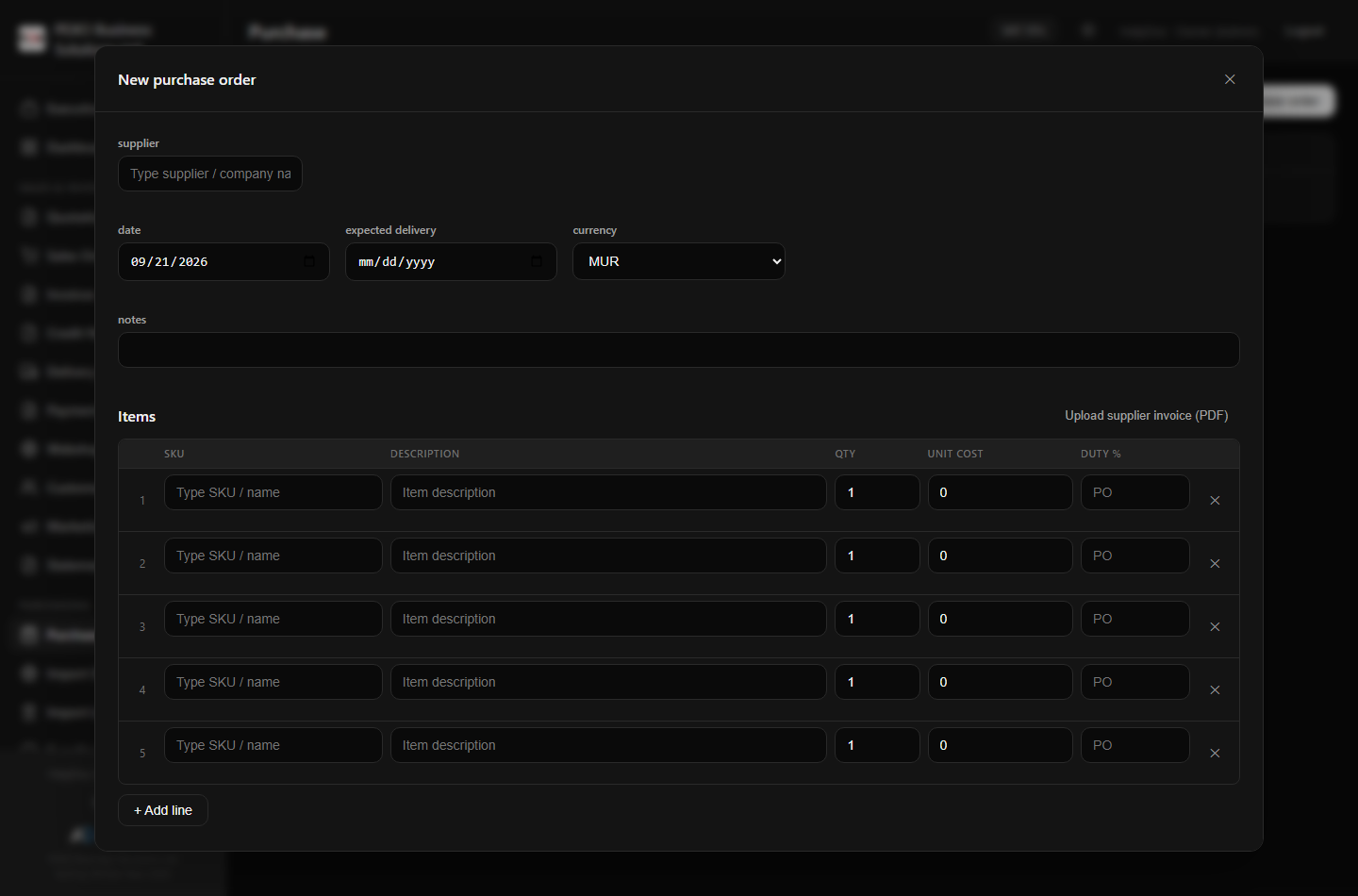
Manual PO
Add lines by typing a SKU or product name in the line's SKU field. Shipping and duty rate apply to the whole PO; each line can override the duty rate.
Receiving into In Transit
For imports, receive with the “Receive into In Transit / Awaiting Cost” checkbox ticked:
- Nothing is added to sellable stock yet.
- A GRN number (GRN-2026-… ) is issued and the goods are posted to the in-transit account in the books (Dr Inventory–In Transit / Cr GRNI).
- Use this GRN number to link the shipment (next section).
Unticked = classic receipt: stock is added immediately at PO cost (use for local purchases only).
Import shipments & landed cost
Purchasing → Import Shipments. This is where the true MUR cost of an import is built.
Building a shipment
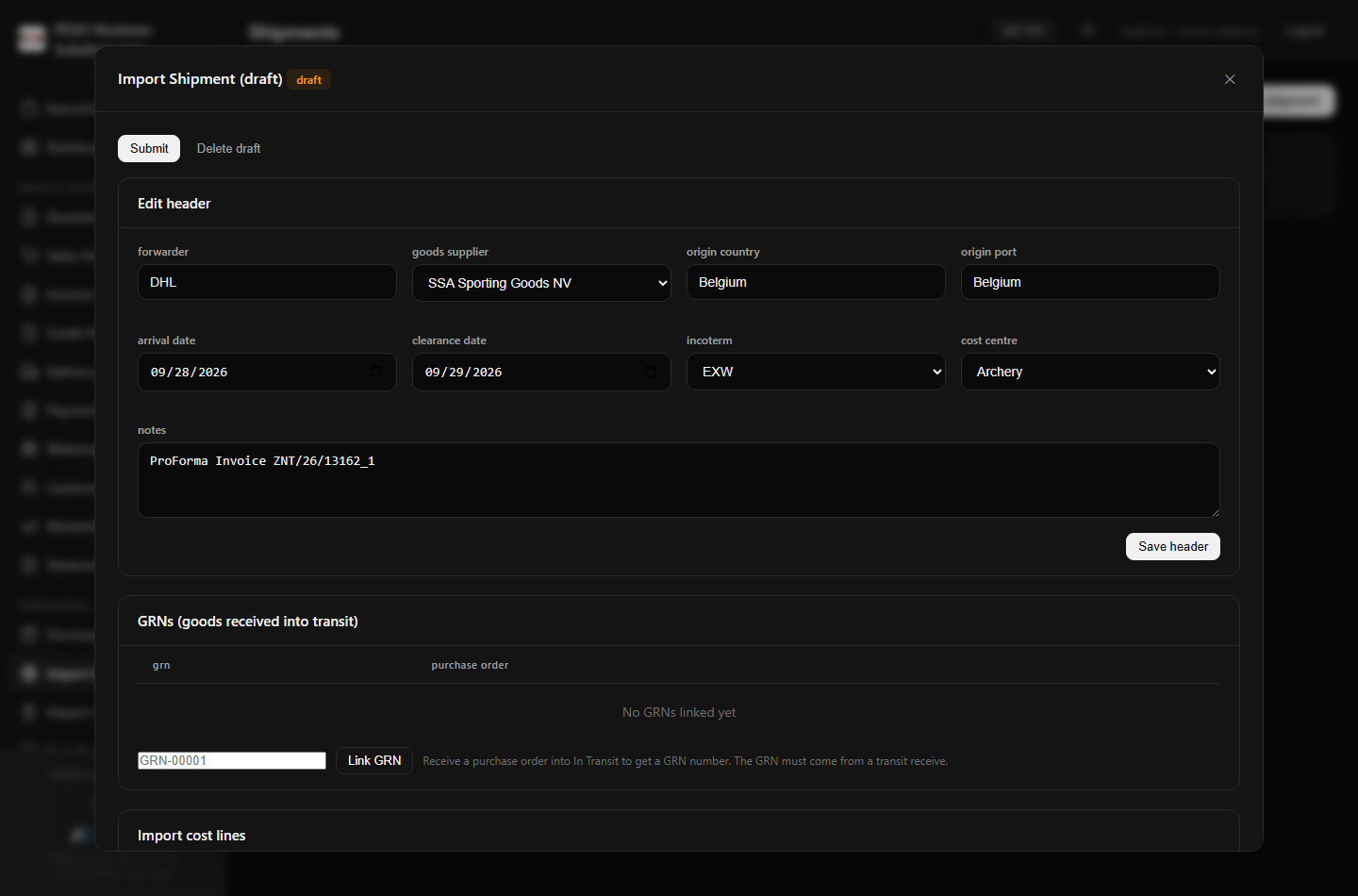
- + New shipment — forwarder, origin, dates, incoterm, cost centre.
- Link the GRN from the transit receipt. The goods lines snap in automatically with quantities and MUR values.
- Add cost lines: freight, insurance, clearance, duty, port/courier, bank fees — each in its own currency with its own FX rate (original amounts are kept as evidence). Set VAT rate and tick recoverable VAT only when it is claimable — recoverable VAT goes to the VAT input account and never into the item cost; non-recoverable VAT is capitalised.
- Propose duty computes customs duty per item from its HS/duty rate on the CIF value — one click turns it into a duty line.
- Each cost line chooses its allocation basis: value, weight, volume, quantity, or manual per-item amounts.
- Attach documents (broker invoice, bill of entry, payment proof) in the Documents section — optionally linked to a cost line.
Approving and posting
- Submit (issues the IMP- number) → Send to Finance Review → Approve (admin/accountant).
- The allocation preview must match the cost lines exactly — the system blocks posting on any mismatch.
- Post shipment: stock moves from transit to your shop at the landed unit cost, the item's average cost is revalued, and the journal capitalises the full landed cost (Dr Inventory / Cr In-Transit / Cr Charges Payable / Dr VAT input for recoverable VAT).
After posting
- Apply suggested prices — the pricing panel suggests a VAT-inclusive price from landed cost and your margin target.
- Settle payables — record the bank payment against the goods (GRNI) or any charge line; overpayment is rejected.
- Reverse (with a reason) if something was wrong: a full reversal journal and stock transfer back — blocked if the goods already sold. Corrections are never silent.
Import loans & credit limit
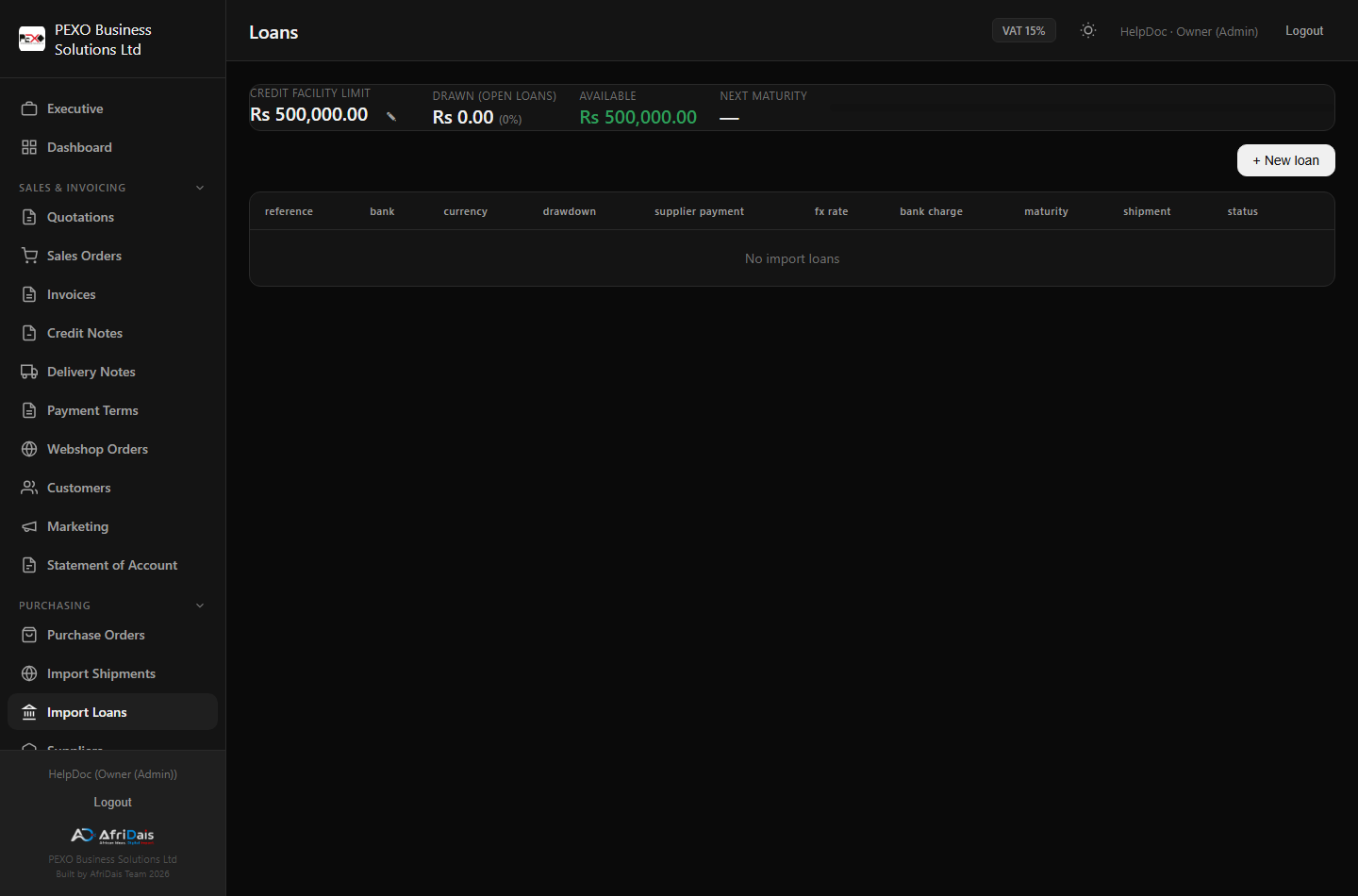
- Purchasing → Import Loans → + New loan: bank, reference, currency, drawdown date, supplier payment amount, the actual FX rate used, bank charge, maturity. Link it to the supplier/PO/shipment.
- The facility card at the top shows the credit limit (pencil icon to change it — default Rs 500,000), drawn by open loans in MUR, available headroom, and the next maturity date. The same figures appear on the executive dashboard.
- → Shipment fee pushes the loan's bank charge into a chosen shipment as a capitalisable cost line (one click; duplicates rejected).
- Settle records the repayment date (early repayment before maturity is fine).
Quote → order → invoice → receipt
- Quotations: pick the customer, add lines (SKU typeahead), save. Send by email/WhatsApp or print A4/80mm.
- Convert to a Sales Order; confirm it (stock is reserved).
- Deliver from the SO — stock leaves the shop and the cost of goods posts to the books (Dr COGS / Cr Inventory at buying price).
- Invoice from the SO or directly. Issuing an invoice posts Dr Debtors / Cr Sales / Cr VAT automatically.
- Receipts: record payment (cash/bank transfer/card/cheque) — Dr Bank/Cash / Cr Debtors. Part-payments track balance and invoice status (partial → paid).
Credit notes & corrections
- Credit notes (Sales → Credit Notes) reduce what the customer owes and post the contra journal (Dr Sales / Dr VAT / Cr Debtors) automatically; restock returned goods on the CN form.
- Void receipts reverse the bank/AR entry with a reason.
- Posted documents are never edited — corrections happen by reversal or a new correcting document, all audited.
Stock, bins & dead stock
- Stock page: on-hand per product with movement history (every receipt, sale, adjustment, issue, shipment post/reversal).
- Bins are shelf labels assigned to products.
- Adjustments (positive or negative) need a reason and are audit-logged; Issues record stock taken for office/testing.
- Reconciliation: export a count sheet (CSV), count, then enter counted quantities — differences post as adjustments with an audit trail.
- Receiving against a PO updates
received_qtyper line; the PO becomes “received”.
How the books work (GL)
Arcus keeps a real double-entry ledger. You normally never touch it — journals post automatically:
| When you… | The system posts… |
|---|---|
| Issue an invoice | Dr 1400 Debtors / Cr 4000 Sales / Cr 2200 VAT Payable |
| Record a receipt | Dr 1100 Cash or 1200 Bank / Cr 1400 Debtors |
| Deliver goods | Dr 5100 COGS / Cr 1300 Inventory (at buying price) |
| Receive goods into transit | Dr 1310 Inventory–In Transit / Cr 2110 GRNI |
| Post an import shipment | Dr 1300 Inventory (landed) / Cr 1310 / Cr 2120 Charges / Dr 2210 VAT input |
| Settle shipment payables | Dr 2110/2120 / Cr Bank |
| Post an expense | Dr expense account / Cr Bank or Cash |
| Record payroll | Salary, PAYE, NSF/CSG journals |
Every journal is balanced before it is accepted, carries a reference and source document, and a cost centre where one applies. Reports → General ledger shows every account's entries; Trial balance, Income statement and Balance sheet read the same ledger.
Reports
| Report | Use it for |
|---|---|
| Executive / Marketing dashboards | CEO morning scan; campaigns & promos |
| Income statement, Balance sheet, Trial balance, Cash flow | The books (GL-based) |
| VAT report | MRA VAT return — output VAT from invoices, input VAT from purchases/imports, line detail export |
| AR / AP ageing, Statements | Who owes what, supplier statements |
| Import costs / In-transit stock / Pricing below cost | Import performance, uncosted GRNs, margin leaks |
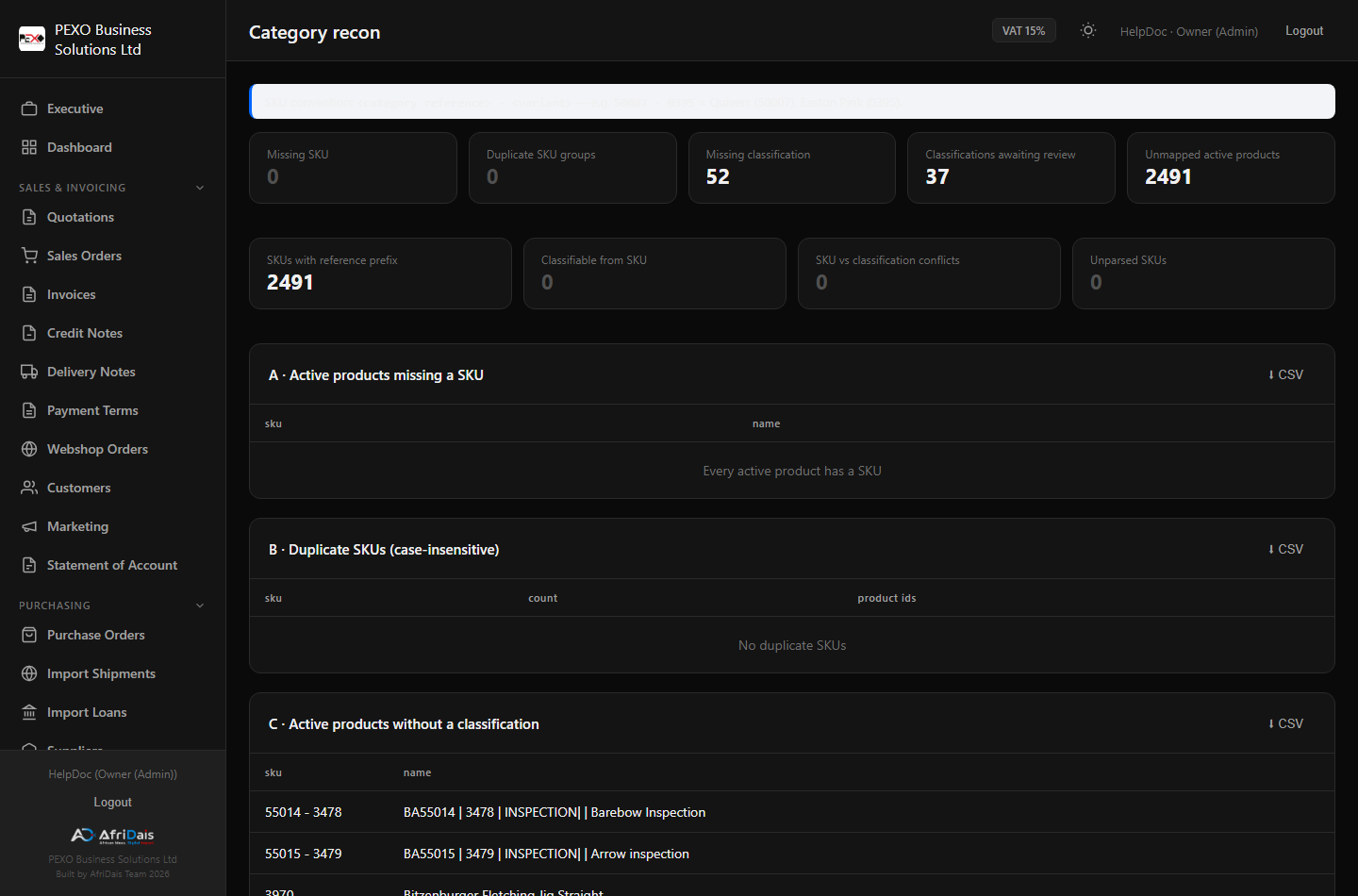
| Category / SKU reconciliation | Missing SKUs, duplicate SKUs, unclassified products, classifications awaiting review |
| Slow stock / upsell (Marketing) | Promotions CSV, cross-sell lists |
Troubleshooting & FAQ
“Failed to create PO” / “Failed to update PO: …”
The message now names the real cause. Common ones: a description over 255 chars (truncated automatically), a SKU that matches more than one product, a SKU/mapping conflict, or two lines naming the same product differently. Fix the line and save again — drafts can be edited freely.
My uploaded proforma didn't extract properly
Extraction is best-effort and tuned for SSA, Sanlida, TOG and JVD layouts. Other suppliers may need manual lines — the warning banner reminds you to review every line before saving.
A GRN won't link to a shipment
Only transit receipts (Receive with “into In Transit” ticked) produce linkable GRNs, and a GRN can belong to only one live shipment. If it was linked to a shipment that was later reversed, link it to the replacement shipment.
Post shipment is blocked
The allocation must match the cost lines exactly. Check the red mismatch list on the shipment — usually a manual allocation that doesn't sum to its line, or a zero-weight item allocated by weight.
I can't reverse a shipment
Some of the goods already left the shop (sold or moved). Correct via a manual stock adjustment with a reason instead; the original posting stays in the audit trail.
An item vanished from the products list
It was deactivated (zero quantity). Search for it — it appears with an inactive tag — and use Reactivate; it also comes back automatically when new stock arrives.
Margin shows 100% on the dashboard
The product has no buying/landed cost yet. Update buying prices (product Edit) — import shipments set them automatically when posted.
Who do I ask for new users or role changes?
Admin → Users: add users and assign roles there. Sessions expire after 7 days of inactivity.